
Before you start
The download on this website is Margin 0.8.0 for macOS on Apple Silicon. Check the Chip entry in About This Mac if you are not sure which Mac you have.
- An Apple Silicon Mac and the Margin DMG installer.
- Your own AI provider account and API key, or an installed and authorized supported CLI.
- A short, non-sensitive question to test your setup.
The beta installer is free to download. AI provider usage is separate and depends on the provider or CLI you connect.
Install the app
- Download the Margin beta installer.
- Open the DMG and drag Margin into Applications.
- Open Margin from Applications and follow the introductory screens.
If macOS shows a security alert, read the exact message before continuing. Apple explains the available options in its guide to opening downloaded apps.
Connect the AI you use
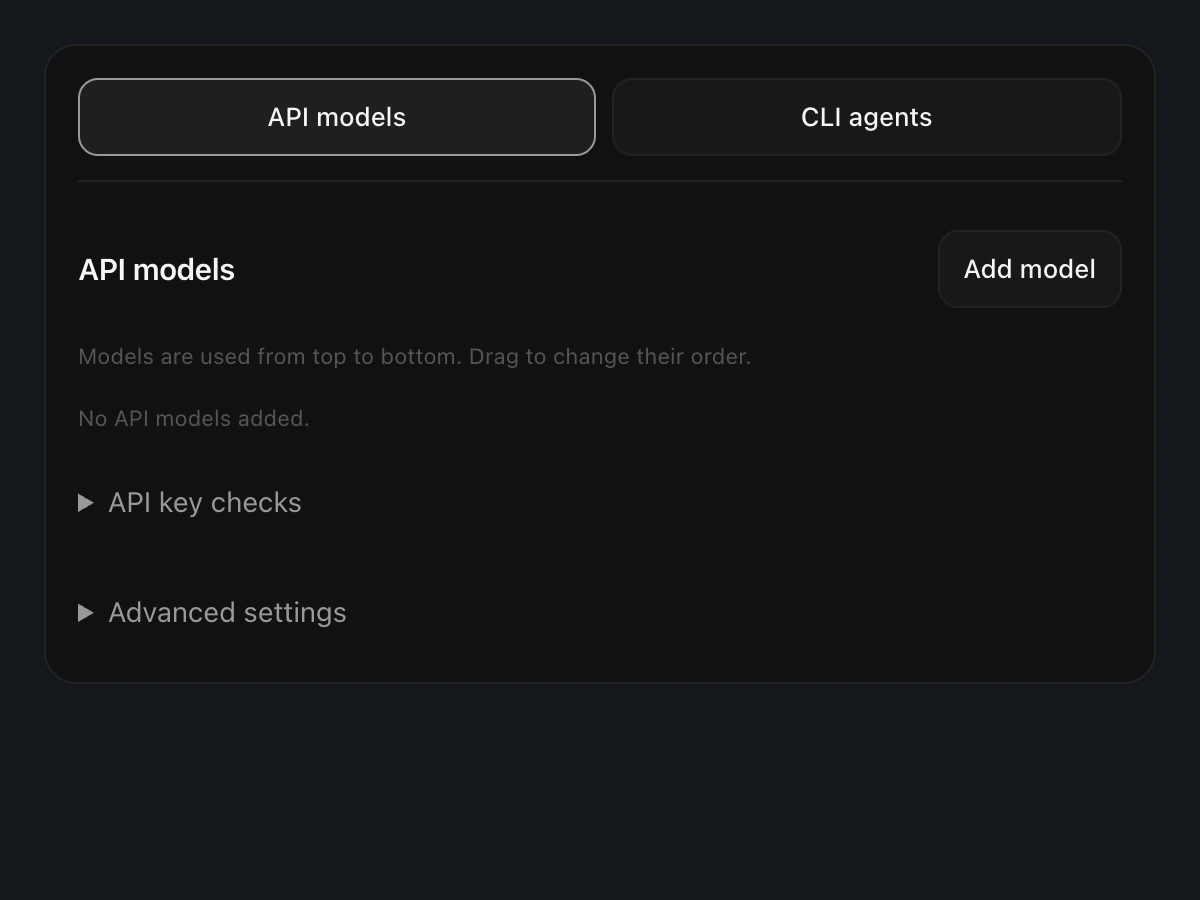
Margin connects to your selected AI provider. In the app’s provider settings, choose API models or CLI agents.
Using an API key
- Open API models and choose Add model.
- Select your provider and save its API key inside the app.
- Choose an available model and add it to your model list.
The beta interface includes OpenAI, Groq Cloud, Anthropic Claude and OpenRouter. Available models depend on your provider and account.
Using a supported CLI
If you already use a supported CLI, choose it under CLI agents. Install and authorize it on your Mac first, then check its status in Margin. The CLI uses its own account and access limits.
Choose what to capture
Choose the audio source for your session. A microphone captures your voice; system audio follows sound from your Mac. A screenshot adds the visual question you choose to share.
macOS may ask for Microphone or screen and system-audio access when you use those features. Permission names vary by macOS version. Review them in System Settings → Privacy & Security.
Use a test question and content you are comfortable sharing with your connected AI provider. This website’s privacy policy covers the website; your AI provider has its own data terms.
Try a question you can check
Start a session with a simple question, such as explaining a technical trade-off you already understand. Check the recognized text before sending it, and review the suggestion in your own words.
- Confirm that the right audio source is selected.
- Add only the experience or project context relevant to the question.
- Check the explanation against what you know. AI suggestions can be wrong.
If something needs attention
No audio is being recognized
Check the selected source, whether the session is paused, and the matching macOS permissions. After changing a system permission, macOS may ask you to reopen the app.
The AI provider does not answer
Check that a model or CLI is selected and that the connected account is authorized and has available usage. Read the error shown in the app; account limits and connection problems need different fixes.
A screenshot is not included
Check screen-capture permission and confirm which screenshot is attached before sending the question.
Start with your next question.
Download the free beta for your Apple Silicon Mac. Connect your own AI provider or supported CLI when you are ready.
Download Margin for Mac